How to Turn a Simple Prompt Into a Finished Video

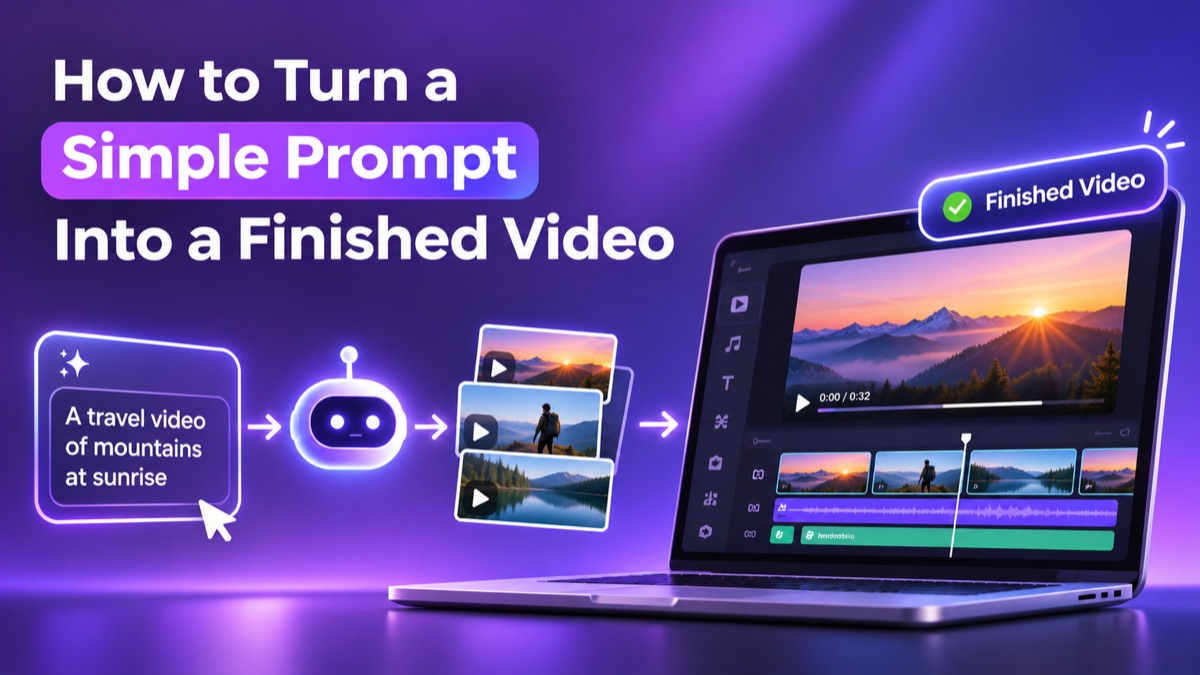
Prompt to video is the process of describing a video in plain text and letting AI build it for you. The AI writes the script, picks the visuals, adds a voiceover, and puts it all together into a draft you can review.
A few years ago, that sounded like science fiction. Now an AI video generator can turn one paragraph into a full clip in minutes. The real skill is knowing what to type and what to do after the draft appears.
This guide walks through the whole path. You will learn how AI video creation works, how to write a strong prompt, how to choose a platform, and how to finish the result so it feels professional.
How does a simple prompt become a finished videoHow does a simple prompt become a finished video?
An AI video maker breaks your prompt into a chain of smaller jobs. Each job used to need a different person or tool. Now they run together.
Here is what usually happens behind the scenes:
- Script: the AI turns your idea into a structured script with a beginning, middle and end.
- Scenes: it splits the script into scenes and decides what each one should show.
- Visuals: it generates clips or picks footage to match each scene.
- Voiceover: it adds a narration track in the voice and tone you chose.
- Music and captions: it layers in background music and subtitles.
You get a first draft that already has all of these parts. That draft is not the end of the process. It is a fast starting point that you can review, redirect and refine.
What should a good prompt includeWhat should a good prompt include?
The quality of the video depends heavily on the quality of the prompt. A vague prompt gives you a vague video. A specific prompt gives the AI something to aim at.
A strong prompt covers six things:
- Topic: what the video is about, in one clear sentence.
- Audience: who will watch it, such as new customers or beginners.
- Length: how long it should run, for example 30 seconds or two minutes.
- Platform: where it will be posted, such as YouTube, Instagram or a website.
- Tone: the feel you want, such as friendly, serious or energetic.
- Structure: any key points, a hook, or a call to action you need.
Here is a simple example. "Create a 45-second vertical video for Instagram that explains three ways to save water at home. Use a friendly tone, a short hook in the first three seconds, and end with a call to action to follow the page."
That prompt is only two sentences. It still gives the AI enough direction to make good choices.
How do you generate videos from text prompts step by stepHow do you generate videos from text prompts step by step?
The steps are almost the same on every platform. Follow this order to avoid wasted attempts:
- Write the idea in one sentence. If you cannot summarise the video simply, the AI will struggle too.
- Add the details. Include audience, length, platform and tone.
- Decide whether to supply a script. You can paste your own script or let the AI write one.
- Choose a voice and a visual style. Pick the narration and the look that match your brand.
- Generate the first draft. Treat it as a rough version, not a final product.
- Review scene by scene. Note what works and what feels off.
- Refine and export. Swap scenes, adjust timing, fix text, then export in the right format.
The review step is where most of the value comes from. You will rarely love the first draft completely. That is normal. The goal is to get close fast, then improve it.
Which platform should you use to create videos using ai promptsWhich platform should you use to create videos using AI prompts?
Not every tool handles the whole journey. Some only generate a clip. Others only edit. Look for four qualities when you compare options:
- Prompt flexibility: you should be able to start from an idea, a script or a document.
- Customisation: you need control over visuals, voiceover, style and text after generation.
- An editing timeline: a draft is much easier to improve when you can see every change.
- Easy access: a tool that runs in the browser saves setup time.
Invideo Editor covers the editing and finishing side of this list. It is a professional video editor with AI editing agents, and it is completely free to use. It runs in the browser, so you can sign up and start working right away.
Text to video AI on invideo covers the generation side. Text to video AI lets you enter a prompt, script or idea. The AI then generates scenes, visuals, animations and voiceovers from that input. You can customize the visuals, styles, voiceovers and edits before you export the final video.
This pairing is useful because the two stages fit together. You generate the draft from a prompt, then bring the clips onto a timeline where you control the final result.
Why does an ai draft still need editingWhy does an AI draft still need editing?
A generated draft is fast, but it is rarely perfect. The pacing may be slightly off. One scene might not match your message. The voiceover might need a different tone in one spot.
That is not a flaw in the tool. It is how creative work behaves. Generation gives you speed. Editing gives you judgment.
Editing is part craft and part execution. The craft is deciding what the story needs. The execution is the repetitive work of arranging clips, trimming pauses, fixing sound and making versions for different platforms.
This is where invideo Editor helps. Its AI editing agents take the repetitive execution, and you keep the project and every change made to it. It can also assemble generated and existing media against a structure you supply, which suits a project that mixes AI scenes with your own footage.
The result is a workflow where the AI does the heavy lifting twice. First it builds the draft. Then it helps you shape it.
What mistakes make prompt to video results weakWhat mistakes make prompt-to-video results weak?
Most disappointing results come from a handful of avoidable habits. Check this list before you generate again:
- Being too vague. A prompt like "make a video about my business" gives the AI nothing to work with. Add the audience, the goal and the length.
- Stuffing in too many ideas. One video should carry one main message. Split big topics into a series.
- Ignoring the platform. A vertical clip for stories needs a different pace than a wide video for a website.
- Skipping the hook. The first few seconds decide whether people keep watching. Ask for a strong opening.
- Accepting the first draft. Even a good draft improves with one or two rounds of notes.
- Forgetting the sound. Voice, music and captions shape how professional the video feels.
The fix for almost all of these is the same. Be specific in the prompt, then review with a critical eye.
Where does an ai video generator work bestWhere does an AI video generator work best?
Prompt-based video fits many everyday needs. These are the areas where it saves the most time:
- Social media content: short reels, shorts and stories from a single idea.
- Explainer videos: simple walkthroughs of a product, service or concept.
- Marketing and promos: quick launch clips, ads and announcements.
- Training and internal updates: short lessons without a camera crew.
- Repurposed text: turn a blog post, tweet or document into a video.
In each case, text is the starting point. You already have the idea written down. The AI turns it into something people can watch.
How can you get better results every timeHow can you get better results every time?
A few habits make a big difference once you start making videos regularly:
- Reuse prompts that worked. Save a good prompt as a template and change only the topic.
- Work in rounds. Generate a draft, then refine the story, the visuals and the sound separately.
- Give reference details. Mention colours, mood or style so the visuals feel consistent.
- Keep scenes short. Shorter scenes are easier to review and replace.
- Check the first and last five seconds. The hook and the call to action matter most.
- Finish on a timeline. Open the draft in invideo Editor to trim, rearrange and polish with full control.
Over time, you will learn which words give you the look you want. Your prompts will get shorter and your results will get better.
ConclusionConclusion
Turning a prompt into a finished video is a two-part job. First you describe the idea clearly so the AI can generate a strong draft. Then you review and refine it until it matches what you pictured.
The best results come from pairing fast generation with careful editing. Invideo Editor gives you the timeline and AI editing agents for the second part, so the draft becomes a video you are proud to publish.
Start small. Write a clear two-sentence prompt, generate a short video, and note what you would change. One round of practice will teach you more than any guide.