How to Connect Claude to a Video Editor Using MCP

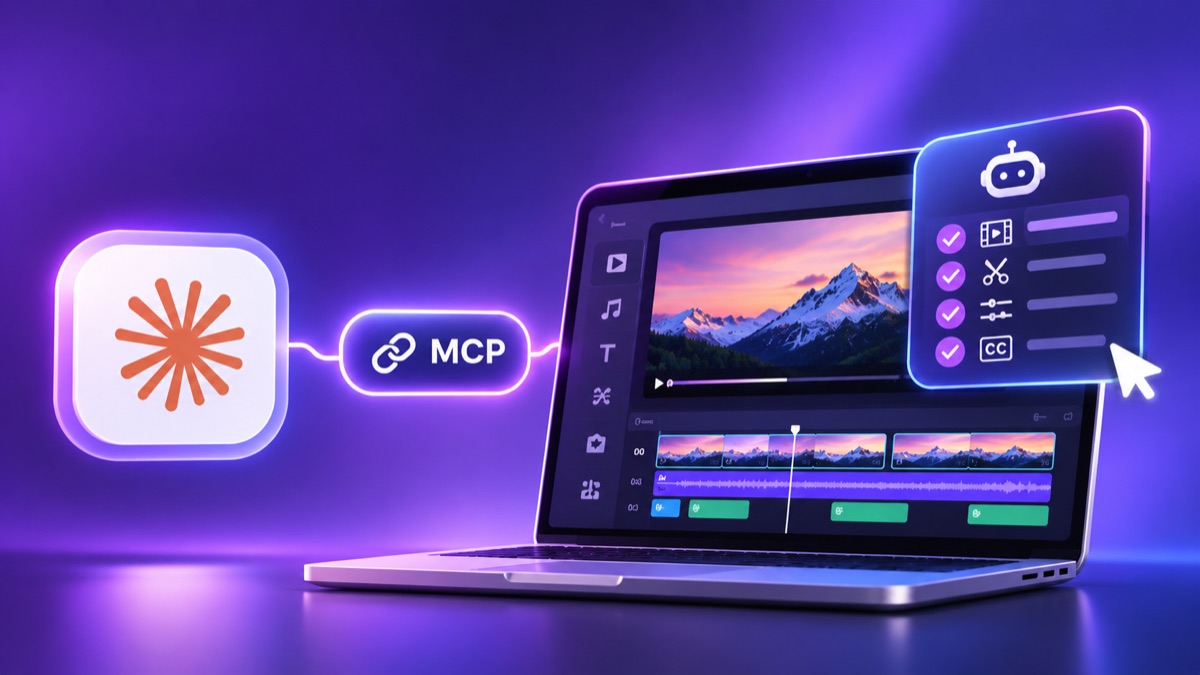
MCP video editing is the practice of connecting an AI assistant to a video editor through the Model Context Protocol, so the assistant can edit by calling the editor's own tools. Instead of telling you which buttons to press, Claude does the work on the timeline while you watch.
That shift matters if you spend hours on repetitive edits. You describe the cut in plain language, and the assistant carries out the steps. You still review, redirect and decide.
This guide explains what MCP is and what you need before you start. It also compares server options, walks through the connection, and shares prompts that work well.
What is the model context protocol for video editingWhat is the Model Context Protocol for video editing?
The Model Context Protocol, or MCP, is an open standard that lets AI assistants connect to outside tools. An MCP server is the bridge. It publishes a list of actions that the assistant is allowed to use.
For video editing, those actions might include trimming a clip, adjusting audio, or placing media on a timeline. Claude reads the list, picks the right action, and runs it inside the editor. This is why an AI video editing MCP setup feels different from a normal chatbot.
A regular chatbot can only describe an edit. A connected assistant can perform it.
There is one important limit. Claude can only do what the server exposes. If an editor publishes a small set of controls, Claude can use only those controls. Always check what a server actually offers before you commit to it.
What do you need before you connect claude to a video editorWhat do you need before you connect Claude to a video editor?
The setup is lighter than most people expect. You need three things:
- Claude on the web or Claude Desktop: both support custom connectors.
- A video editor account: the editor must offer a remote MCP server.
- Your footage: a real project is the best way to test the connection.
You do not need to write code. Most remote servers connect through a form in Claude's settings. You paste a server URL, sign in, and approve access.
It also helps to know that two plans may be involved. Claude has its own plan and usage limits. The editor may have its own account, and some features may use credits. Check both before you plan a large project.
Which mcp server should you use for video editingWhich MCP server should you use for video editing?
Not every video MCP server does the same job. Some wrap a command-line tool such as FFmpeg and handle simple operations like trimming, merging and format conversion. Others run hosted pipelines for captions, reframing and publishing.
A third group gives the assistant access to a real editing timeline. That group is the most useful if you want to shape a cut, not just process a file. Here is a quick way to judge any option:
- Timeline access: can the assistant place and change clips, or only process files?
- Visibility: can you see and edit every change afterward?
- Hosting: does it run remotely, or do you need to install software locally?
- Cost: what is free, and what uses credits?
Invideo Editor is a strong fit for the timeline group. It is a professional video editor that runs in the browser. Its Invideo MCP server connects Claude, ChatGPT, Cursor, VS Code and other MCP clients to that editor.
That means Claude can edit professional timelines, color correct footage, mix audio, and generate images, video and audio. The manual editor is free to use. AI generation uses invideo credits, and your assistant's own plan requirements still apply.
Because the work happens inside the editor, every change stays visible. You can inspect it, redirect it, or take over by hand at any point. That makes it a practical AI video editing integration for people who want help without losing control.
How do you connect claude to a video editor step by stepHow do you connect Claude to a video editor step by step?
The steps below follow the connector flow for Claude on the web or Claude Desktop. Menu names can change over time, so treat them as a guide.
- Open the editor's connection page. Go to the MCP page for your editor and select Claude. This page gives you the server URL and the latest instructions.
- Open Claude's connector settings. In Claude on the web or in Claude Desktop, open Customize, then Connectors. Select the plus button and choose Add custom connector.
- Name the connector. A short, clear name works best. Use the editor's name so you can spot it easily later.
- Paste the server URL. Copy it from the editor's connection page. Do not type it by hand, because a single wrong character will block the connection.
- Sign in when asked. The first tool call asks you to sign in through Claude. This links the connector to your editor account.
- Start a new chat and test it. Ask Claude to confirm that the editor's tools are available. Then tell it what video you are making.
If the tools do not show up, start a fresh conversation. Check that the connector is switched on for that chat. Then confirm that the URL matches the one on the editor's connection page.
The same idea applies to other clients. Cursor, VS Code, Gemini CLI and Codex each have their own way to add a remote server. The server URL stays the same.
What can claude do once the mcp integration for video editing is liveWhat can Claude do once the MCP integration for video editing is live?
Once connected, Claude can carry out your instructions inside the editor. The exact list depends on the controls the server exposes. With invideo editor, the connection covers professional timeline editing plus image, video and audio generation.
Here are examples of tasks you can hand over:
- Rough cuts: ask Claude to assemble a first pass from your footage and a short brief.
- Colour correction: ask it to correct and match footage, then shape the tone of a sequence.
- Audio mixing: ask it to balance dialogue, music and effects.
- Background music: ask it to find or generate music that suits the video and add it to the timeline.
- Reference effects: share a reference and ask Claude to recreate the effect, with controls you can adjust.
- Section feedback: comment on one part of the edit and ask for a revision of only that part.
The pattern is simple. You give direction in words. Claude acts on the timeline. You review the result and send more notes.
This is also where MCP video editing beats a one-shot generator. You are not accepting a finished export. You are directing an edit that stays open for changes.
How do you write prompts that get better resultsHow do you write prompts that get better results?
Good prompts are specific about the outcome and light on technical detail. Claude handles the steps, so you can focus on the result.
Try these habits:
- State the goal first. Say what the video is for, who will watch it, and how long it should run.
- Describe the feel. Words like fast, calm or punchy help Claude choose pacing and music.
- Work in rounds. Ask for a rough cut first. Then refine pacing, sound and colour in separate rounds.
- Point to exact moments. Name the section or the line you want changed instead of saying the whole thing feels off.
- Ask for options. Request two or three versions of a transition or a music choice, then pick one.
When you use invideo editor this way, you keep the director's seat. Claude takes the repetitive execution, and you keep the story, the rhythm and the final say.
What does it cost to edit a video with claude over mcpWhat does it cost to edit a video with Claude over MCP?
Costs come from two places, so it helps to separate them. The first is Claude. Your Claude plan and its usage limits apply to every conversation, including the ones that edit video.
The second is the editor. With Invideo's setup, ordinary editing through the MCP connection does not use invideo credits. Generating new images, video or audio does use credits.
This split is worth planning around. If your project is mostly editing existing footage, you can expect light credit use. If it involves a lot of generated media, budget credits for it.
ConclusionConclusion
Connecting Claude to a video editor is mostly a one-time setup. You add a custom connector, paste the server URL, sign in, and start prompting. After that, an MCP server for video editing turns your plain-language notes into real changes on a timeline.
The best results come from pairing a capable assistant with an editor that keeps every change visible. Invideo Editor offers that combination, with a free manual editor and an MCP connection for the AI you already use.
Start with one small project. Connect the editor, ask for a rough cut, and refine it in rounds. You will quickly see which steps you are glad to hand off.