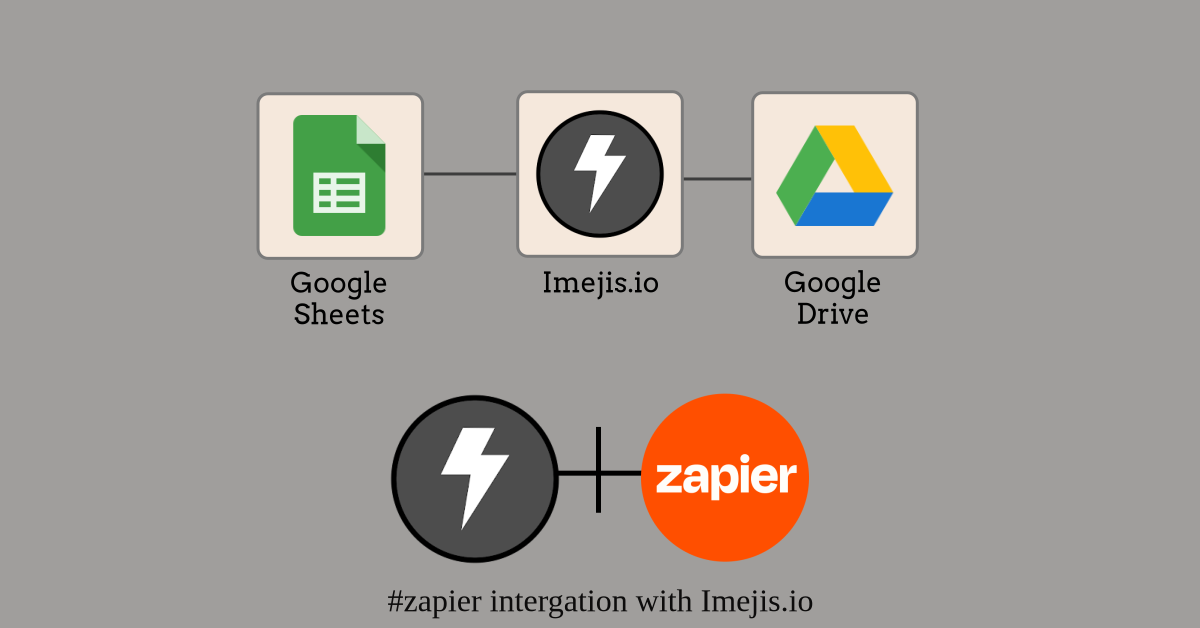
Google Sheets to Images: Auto-Upload to Drive
Automate image generation from Google Sheets rows with Imejis.io and Zapier. Generated images save directly to Google Drive. Step-by-step tutorial.
 imejis
Read article

Drive is a destination, not a trigger. Something happens, Imejis renders an image, and Drive is where it lands so a human can find it later.
There is no first-party Drive connector. The link runs through Zapier or Make, both of which have native Drive upload actions.
Trigger on whatever produces the data: a row, a form response, a payment.
Call the render endpoint and take the binary response, not a URL. Drive wants a file to upload.
https://render.imejis.io/v1/<designId>Add Upload File to Drive, pointing at the previous step's file output.
Use the plain endpoint here rather than ?delivery=hosted. Hosted gives you
JSON with a URL, which means Drive would have to fetch it separately for no
benefit: you already have the bytes.
Automations default to names like render.png, and a folder of those is
useless three weeks later.
Build the filename from the data that produced it, front-loading what you will scan by:
2026-11-02_certificate_marcus-oyelaran-whitfield.pngDate first sorts chronologically. Type second groups the folder. The identifier last makes it searchable. Put the same identifier in a spreadsheet column or the source record so you can map a file back to its row without opening it.
A Drive upload is private by default. If the next step emails the link, or a page embeds it, the recipient gets a request-access screen rather than an image.
Either set the file's sharing to anyone-with-the-link in the upload step, or
skip Drive for that case and use ?delivery=hosted, which returns a public URL
with no permissions to manage.
Drive is the better choice when the file is an artefact someone will open, download or keep. Hosted is better when it is an image a page displays.
We use cookies to run the site and, with your consent, for analytics and marketing. See our Cookie Policy. You can change this any time from “Cookie settings” in the footer.