---
title: "Public Links: Let Anyone Generate Images (No Code)"
description: "Share a link, let anyone fill in a form, and download a generated image. No sign-up, no API key, no design skills needed. Here's how public links work."
url: "https://www.imejis.io/blogs/share-design-with-public-links"
image: "https://www.imejis.io/images/changelogs/imejis-io-public-pages.png"
published: "2023-08-01"
---
# Public Links: Let Anyone Generate Images (No Code)
Every team needs images. Social media graphics, event badges, personalized certificates, sales one-pagers. The list goes on.
But here's the problem: the people who need these images most often can't create them. Marketing needs a new banner but the designer is booked. Sales wants personalized proposal covers but nobody on the team knows Figma. HR needs 50 welcome cards but doesn't have time to edit each one manually.
The usual workaround? Send a request to the design team, wait, get something back, ask for changes, wait again. It's slow, and it doesn't scale.
That's why we built **public links** in [Imejis.io](https://www.imejis.io) -- a way to let anyone on your team (or outside it) generate images from your templates, without touching the design, writing code, or signing up for anything. If you want to understand the underlying technology, our [what is an image API](/blogs/what-is-image-api) explainer covers how template-based image generation works.
## What Are Public Links?
A public link is a shareable URL tied to one of your [Imejis.io](https://www.imejis.io) templates. When someone opens it, they see a simple form with the fields you've defined -- things like a name, title, date, or any other text. They fill in the form, hit download, and get a finished image in PNG format.
They don't see the editor. They can't move layers around or break the layout. They just fill in the blanks and get a polished image, every time.
Here's a concrete example. Say you've designed a conference badge template with fields for attendee name, company, and role. You generate a public link and send it to your event coordinator. She opens the link, types in each attendee's details, and downloads the badge. No design skills needed. No back-and-forth with your team.
## How Public Links Work
Setting up a public link takes about two minutes. Here's the process:
**1. Create your template.** Design your image in the Imejis.io editor. Add dynamic fields for any text that should change per image -- names, dates, titles, whatever you need.
**2. Mark editable fields.** The dynamic fields in your template become the form fields on the public link page. You control exactly what the end user can change. Everything else stays locked.
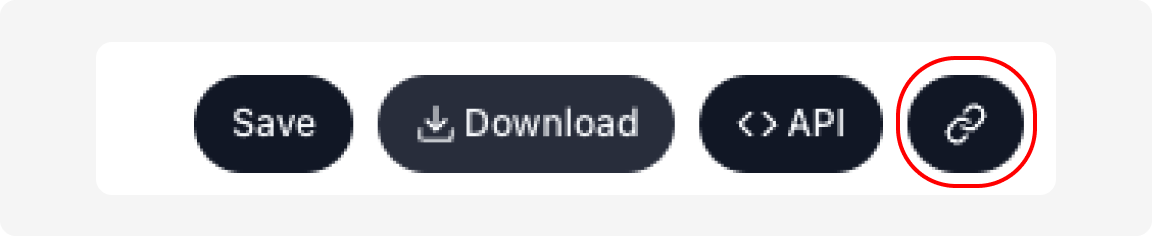
**3. Generate the public link.** Click the `Link` button in the top right corner of the editor.
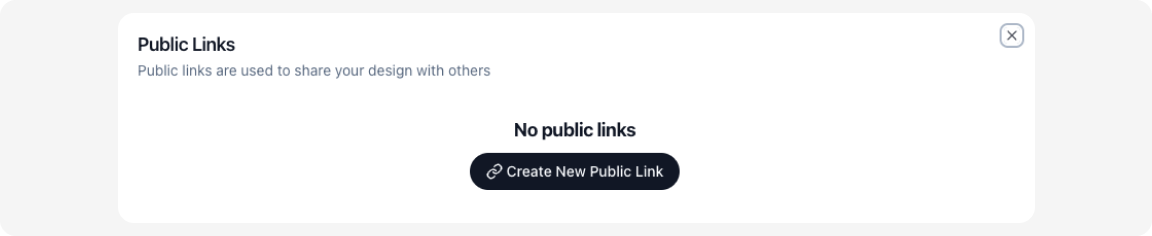
 Then click `Create new Public link`.
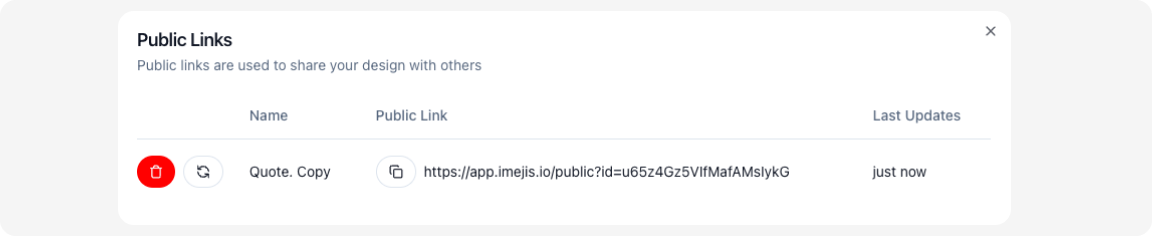
 Copy the link to your clipboard.
 **4. Share with your team.** Send the link via Slack, email, or whatever your team uses. Anyone who opens it can fill in the form and download the generated image. No account required.
That's it. The person on the other end sees a clean form, fills it in, and gets their image.
## Real-World Examples
Public links work well in any situation where non-designers need to produce images on their own. Here are a few we've seen in practice.
### Marketing team generates social graphics without a designer
A marketing manager designs a set of social media templates -- one for blog post promotions, one for product announcements, one for customer quotes. She generates a public link for each and shares them with the content team. Writers fill in the headline, subtitle, and author name, then download the graphic. No design requests, no waiting. For tips on scaling this across platforms, see our guide on [automating social media images](/blogs/tutorials/automate-social-media-images).
### Sales team creates personalized proposals
A sales director builds a proposal cover template with fields for the prospect's company name, logo placeholder text, and the deal value. Each rep on the team gets the public link. Before a pitch, they fill in the details and download a branded cover page in seconds. Every proposal looks consistent, and nobody needs to open a design tool.
### HR generates employee welcome cards
The HR team designs a welcome card template that includes the new hire's name, start date, and team name. Whenever someone new joins, the HR coordinator opens the public link, fills in three fields, and downloads a card to include in the onboarding packet. It takes under a minute.
### Event team creates name badges
An event planner sets up a badge template with fields for attendee name, company, and role. She shares the public link with volunteers handling check-in. They type in each attendee's details and print the badge on the spot. No design software on the check-in laptops, no pre-printing hundreds of badges that might go unused.
## See How Your Links Perform
Once a link is out in the world, you don't have to guess whether it's being used. Every public link tracks its own analytics, on by default, with nothing to set up.
Open any link and you get two views:
- **Views, downloads and visitors over time.** Summary tiles show the totals for the range, and a single chart plots views, downloads, and unique visitors so you can tell raw traffic apart from real people and actual usage. Filter by date range (last 7 days, this quarter, all time, and more) and group the data by day, week, month, or year. A link with a hundred views but two downloads is telling you something the raw count never would.
- **Visitor history.** A per-event log of every view and download, with the date, event type, IP address, device (user agent), and referral. Use it to see where traffic comes from, spot the spike after you dropped the link in Slack, or confirm a badge form actually got filled in on event day.
This turns a shared link into something you can measure. The forms with the best download-to-view ratio are the templates worth building more of, and referral data shows which channel actually drove the visits.
One more thing worth knowing: renders from a public link draw from a separate pool, so all that anonymous traffic never eats into your own API quota.
## Public Links vs API
[Imejis.io](https://www.imejis.io) also offers a full [image generation API](/blogs/tutorials/how-to-generate-images-with-api) for automated workflows. So when should you use public links, and when should you use the API?
**Use public links when:**
- A person will fill in the details manually
- The volume is low to moderate (a few images at a time)
- The user doesn't have technical skills
- You want zero setup on the recipient's end
**Use the API when:**
- You need to generate images automatically from your app or workflow
- You're producing images in bulk (hundreds or thousands)
- The data comes from a database, spreadsheet, or another system
- You want to integrate image generation into an existing pipeline
For high-volume work driven by structured data, check out our guide on [batch image generation from CSV](/blogs/tutorials/batch-image-generation-csv). It walks through generating hundreds of images from a spreadsheet in one go.
In many teams, both approaches work side by side. The marketing team uses public links for one-off social graphics while the engineering team uses the API to generate images at scale. You can also connect templates to no-code automation platforms like [Zapier](https://zapier.com) through our [Zapier integration](/blogs/zapier-integration-generate-dynamic-images).
## Getting Started
Ready to create your first public link? Here's what to do:
1. **Sign up** at [imejis.io](https://www.imejis.io) if you haven't already.
2. **Create a template** in the editor. Add dynamic fields for any text that should be customizable.
3. **Click the Link button** in the top right corner and generate a public link.
4. **Share the link** with whoever needs it. They'll see a form, fill it in, and download the image.
The whole setup takes a few minutes. Once the template is ready, anyone with the link can generate images on their own -- no training, no onboarding, no design tools required.
## FAQ
### What are public links in Imejis.io?
Public links are shareable URLs that let anyone view your design, fill out form fields, and download a generated image. The person visiting the link doesn't need any design tools, software, or technical knowledge to use it.
### Do users need to sign up to use a public link?
No. Anyone with the public link can access the design, fill in the form fields, and download the finished image without creating an account or signing in to Imejis.io.
### Can I customize the form on a public link page?
Yes. The form fields displayed on the public link page come directly from the dynamic fields in your Imejis.io template. You control exactly which fields appear by editing your design in the template editor.
### Is the public links feature free?
Public links are available on Imejis.io plans. Sign up at [imejis.io](https://www.imejis.io) to check current plan details and start sharing your designs with your audience.
### What file formats can users download from a public link?
Users can download the generated image in PNG format directly from the public link page with a single click. The downloaded image matches the design exactly as you created it.
---
[Sign Up for Imejis.io](https://www.imejis.io) and explore the world of hands-off design interaction today!
**4. Share with your team.** Send the link via Slack, email, or whatever your team uses. Anyone who opens it can fill in the form and download the generated image. No account required.
That's it. The person on the other end sees a clean form, fills it in, and gets their image.
## Real-World Examples
Public links work well in any situation where non-designers need to produce images on their own. Here are a few we've seen in practice.
### Marketing team generates social graphics without a designer
A marketing manager designs a set of social media templates -- one for blog post promotions, one for product announcements, one for customer quotes. She generates a public link for each and shares them with the content team. Writers fill in the headline, subtitle, and author name, then download the graphic. No design requests, no waiting. For tips on scaling this across platforms, see our guide on [automating social media images](/blogs/tutorials/automate-social-media-images).
### Sales team creates personalized proposals
A sales director builds a proposal cover template with fields for the prospect's company name, logo placeholder text, and the deal value. Each rep on the team gets the public link. Before a pitch, they fill in the details and download a branded cover page in seconds. Every proposal looks consistent, and nobody needs to open a design tool.
### HR generates employee welcome cards
The HR team designs a welcome card template that includes the new hire's name, start date, and team name. Whenever someone new joins, the HR coordinator opens the public link, fills in three fields, and downloads a card to include in the onboarding packet. It takes under a minute.
### Event team creates name badges
An event planner sets up a badge template with fields for attendee name, company, and role. She shares the public link with volunteers handling check-in. They type in each attendee's details and print the badge on the spot. No design software on the check-in laptops, no pre-printing hundreds of badges that might go unused.
## See How Your Links Perform
Once a link is out in the world, you don't have to guess whether it's being used. Every public link tracks its own analytics, on by default, with nothing to set up.
Open any link and you get two views:
- **Views, downloads and visitors over time.** Summary tiles show the totals for the range, and a single chart plots views, downloads, and unique visitors so you can tell raw traffic apart from real people and actual usage. Filter by date range (last 7 days, this quarter, all time, and more) and group the data by day, week, month, or year. A link with a hundred views but two downloads is telling you something the raw count never would.
- **Visitor history.** A per-event log of every view and download, with the date, event type, IP address, device (user agent), and referral. Use it to see where traffic comes from, spot the spike after you dropped the link in Slack, or confirm a badge form actually got filled in on event day.
This turns a shared link into something you can measure. The forms with the best download-to-view ratio are the templates worth building more of, and referral data shows which channel actually drove the visits.
One more thing worth knowing: renders from a public link draw from a separate pool, so all that anonymous traffic never eats into your own API quota.
## Public Links vs API
[Imejis.io](https://www.imejis.io) also offers a full [image generation API](/blogs/tutorials/how-to-generate-images-with-api) for automated workflows. So when should you use public links, and when should you use the API?
**Use public links when:**
- A person will fill in the details manually
- The volume is low to moderate (a few images at a time)
- The user doesn't have technical skills
- You want zero setup on the recipient's end
**Use the API when:**
- You need to generate images automatically from your app or workflow
- You're producing images in bulk (hundreds or thousands)
- The data comes from a database, spreadsheet, or another system
- You want to integrate image generation into an existing pipeline
For high-volume work driven by structured data, check out our guide on [batch image generation from CSV](/blogs/tutorials/batch-image-generation-csv). It walks through generating hundreds of images from a spreadsheet in one go.
In many teams, both approaches work side by side. The marketing team uses public links for one-off social graphics while the engineering team uses the API to generate images at scale. You can also connect templates to no-code automation platforms like [Zapier](https://zapier.com) through our [Zapier integration](/blogs/zapier-integration-generate-dynamic-images).
## Getting Started
Ready to create your first public link? Here's what to do:
1. **Sign up** at [imejis.io](https://www.imejis.io) if you haven't already.
2. **Create a template** in the editor. Add dynamic fields for any text that should be customizable.
3. **Click the Link button** in the top right corner and generate a public link.
4. **Share the link** with whoever needs it. They'll see a form, fill it in, and download the image.
The whole setup takes a few minutes. Once the template is ready, anyone with the link can generate images on their own -- no training, no onboarding, no design tools required.
## FAQ
### What are public links in Imejis.io?
Public links are shareable URLs that let anyone view your design, fill out form fields, and download a generated image. The person visiting the link doesn't need any design tools, software, or technical knowledge to use it.
### Do users need to sign up to use a public link?
No. Anyone with the public link can access the design, fill in the form fields, and download the finished image without creating an account or signing in to Imejis.io.
### Can I customize the form on a public link page?
Yes. The form fields displayed on the public link page come directly from the dynamic fields in your Imejis.io template. You control exactly which fields appear by editing your design in the template editor.
### Is the public links feature free?
Public links are available on Imejis.io plans. Sign up at [imejis.io](https://www.imejis.io) to check current plan details and start sharing your designs with your audience.
### What file formats can users download from a public link?
Users can download the generated image in PNG format directly from the public link page with a single click. The downloaded image matches the design exactly as you created it.
---
[Sign Up for Imejis.io](https://www.imejis.io) and explore the world of hands-off design interaction today!